Free · No account · Works offline
Since when did you last change the air filter?
Sincewhen keeps track of the things you do every so often, and shows what is due based on when you actually last did them. Not on a date you picked months ago.
Runs in your browser. Add it to your home screen and it works like any other app.
Sound familiar?
You can't remember when you last did it
Was the smoke detector test last month, or last spring? Jobs that come around every few weeks or months are the easiest to lose track of.
Calendar reminders don't fit
A reminder on a fixed date nags you even when you did the job early, and quietly moves on when you do it late.
Everything looks equally urgent
A to-do list can't tell a daily job that is two days late from a yearly one that is a week late.
How it works
- 1
Add what you do, and how often
Change the air filter, every 3 months. Wash the sheets, every 2 weeks. Put them in folders that fit your life: Home, Car, Cleaning, Exercise.
- 2
Check it off when it's done
One tap. The clock restarts from that day, so doing something late never leaves you behind.
- 3
Let the colors guide you
Tasks go from green to yellow to red as they come due. Folders turn red as overdue work piles up inside them, so you can see where to start.
See where the work is
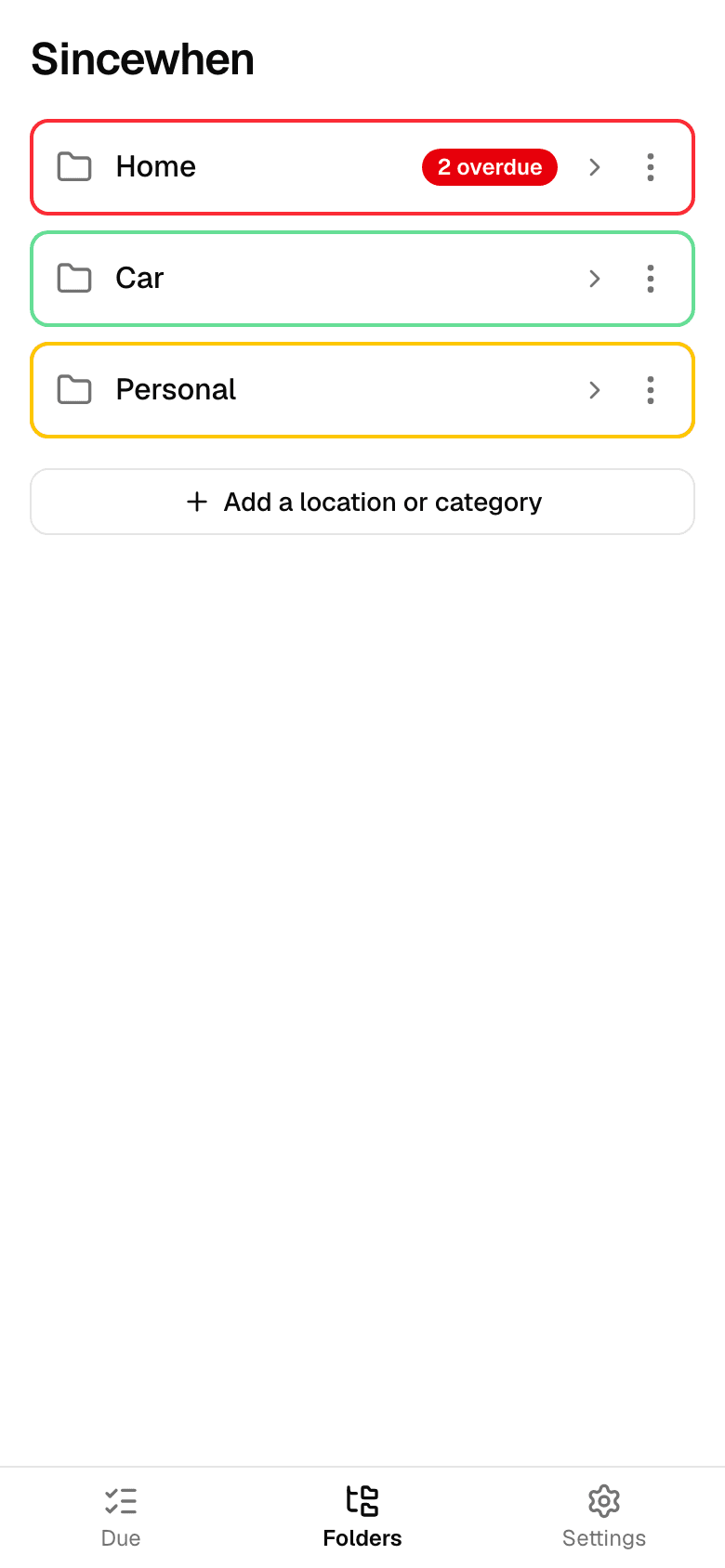
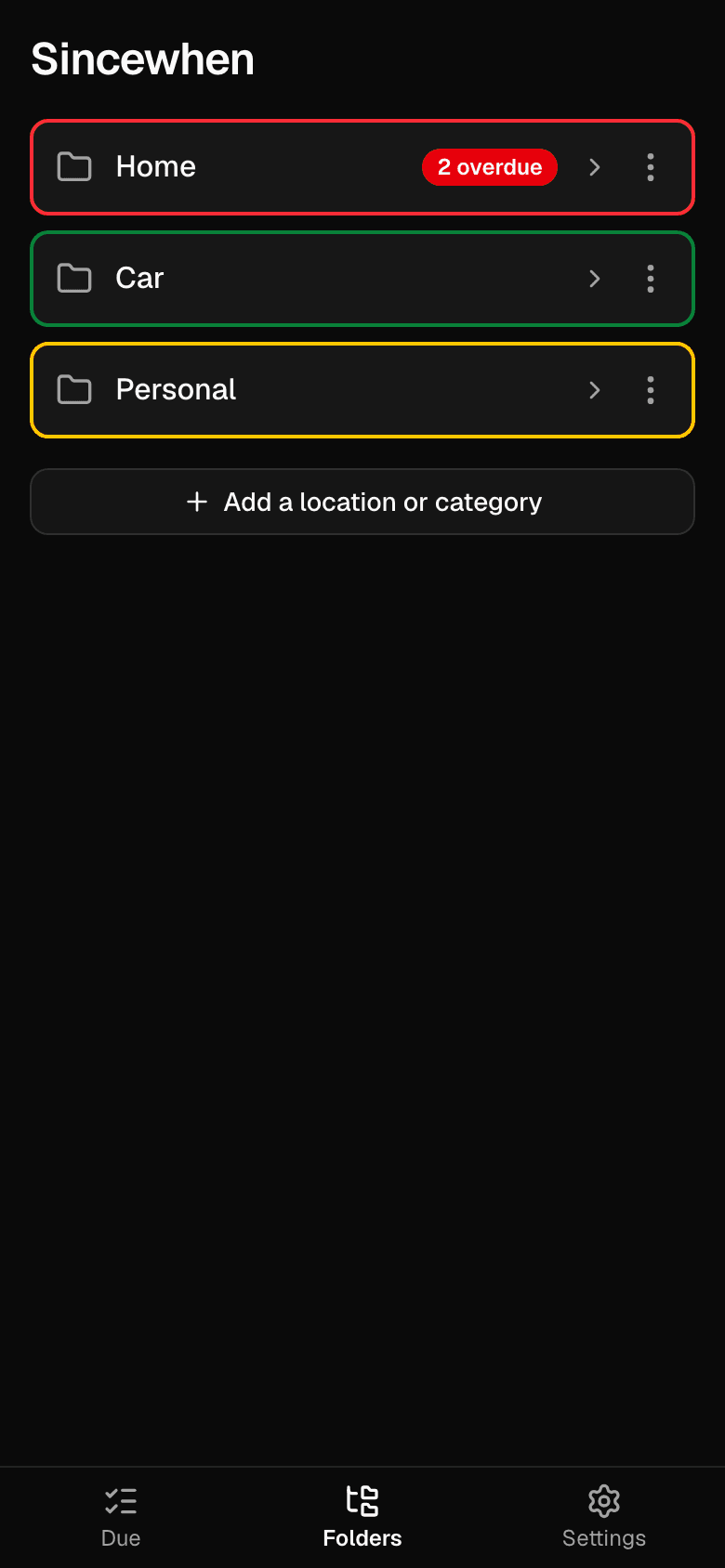
Every place at a glance
Each location or category takes its color from what is overdue inside it.
The most urgent first
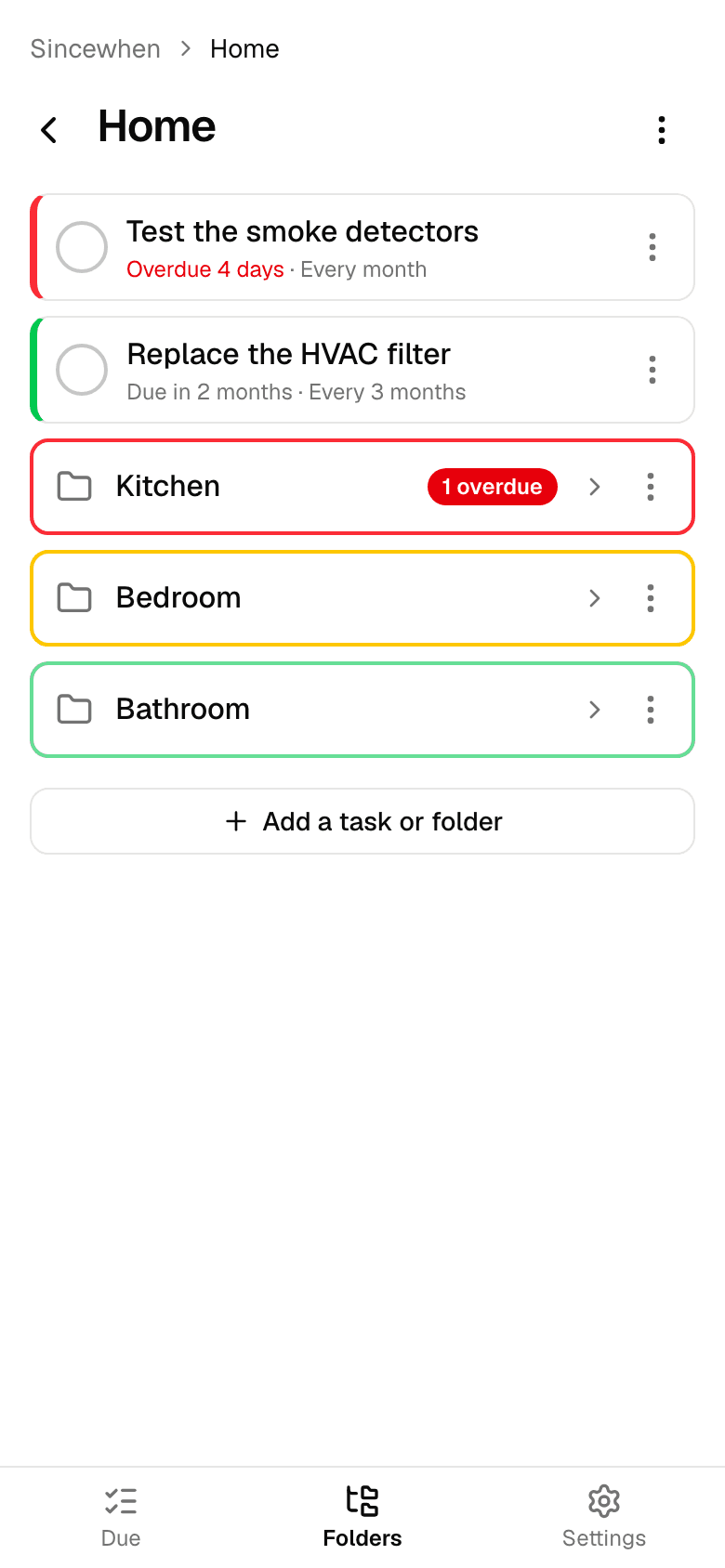
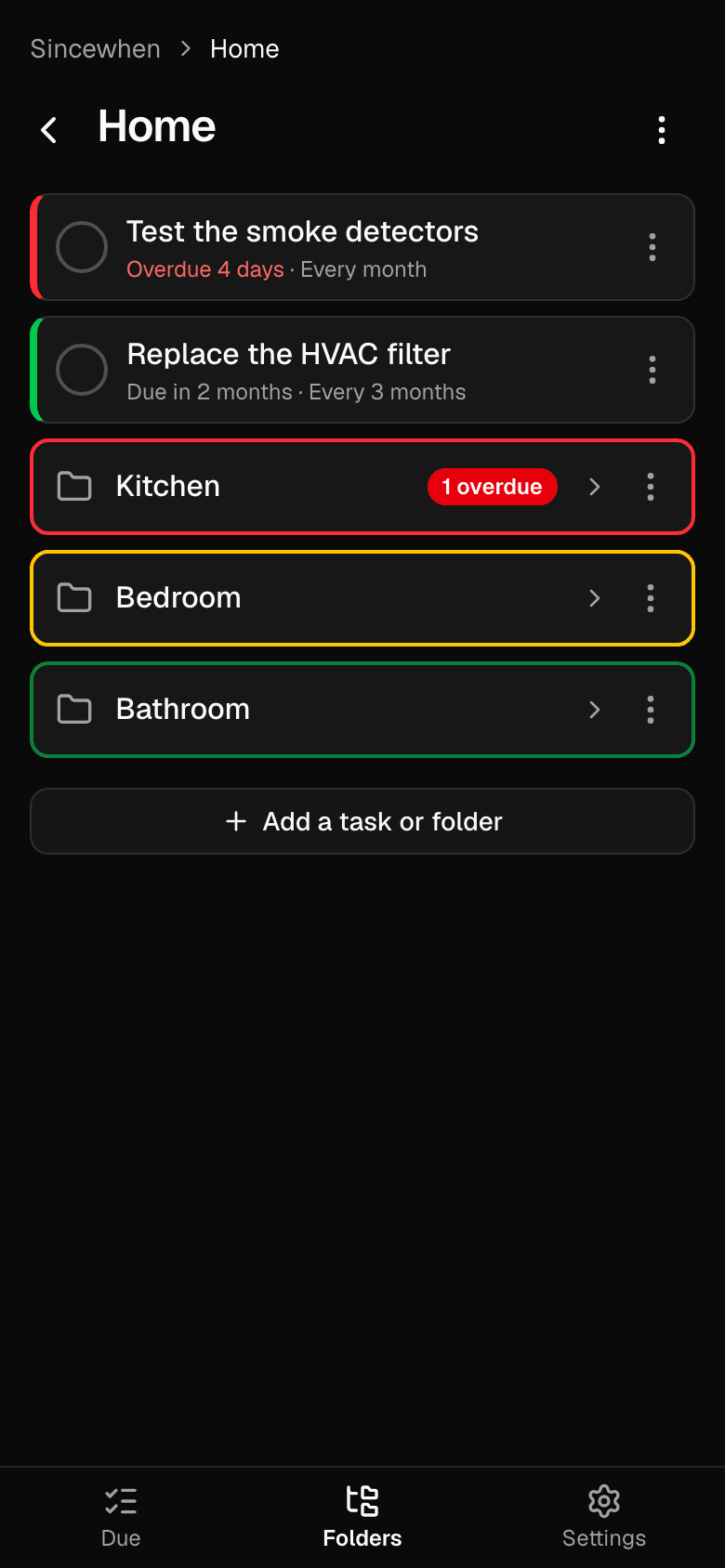
Inside a folder, tasks are sorted by what needs you most, with rooms and sub-tasks for bigger jobs.
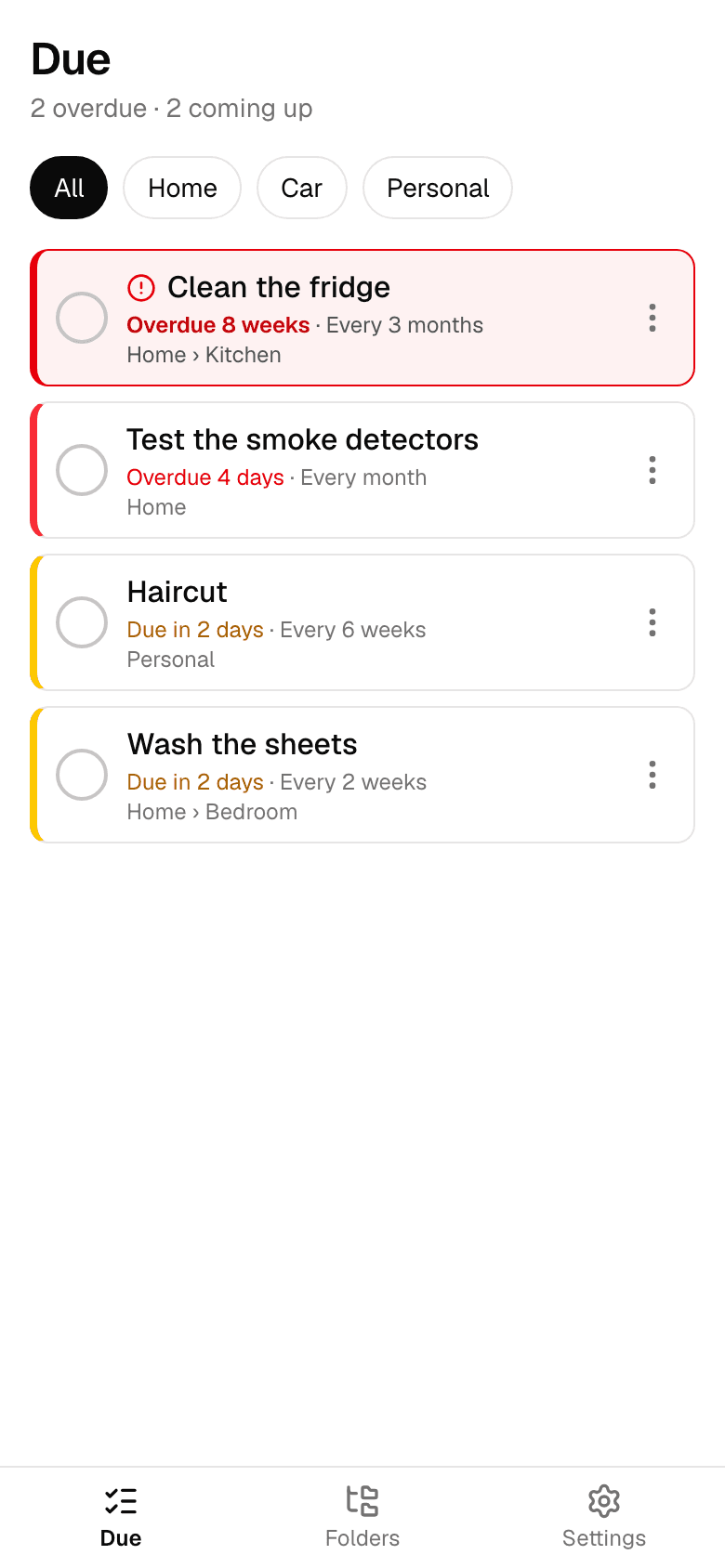
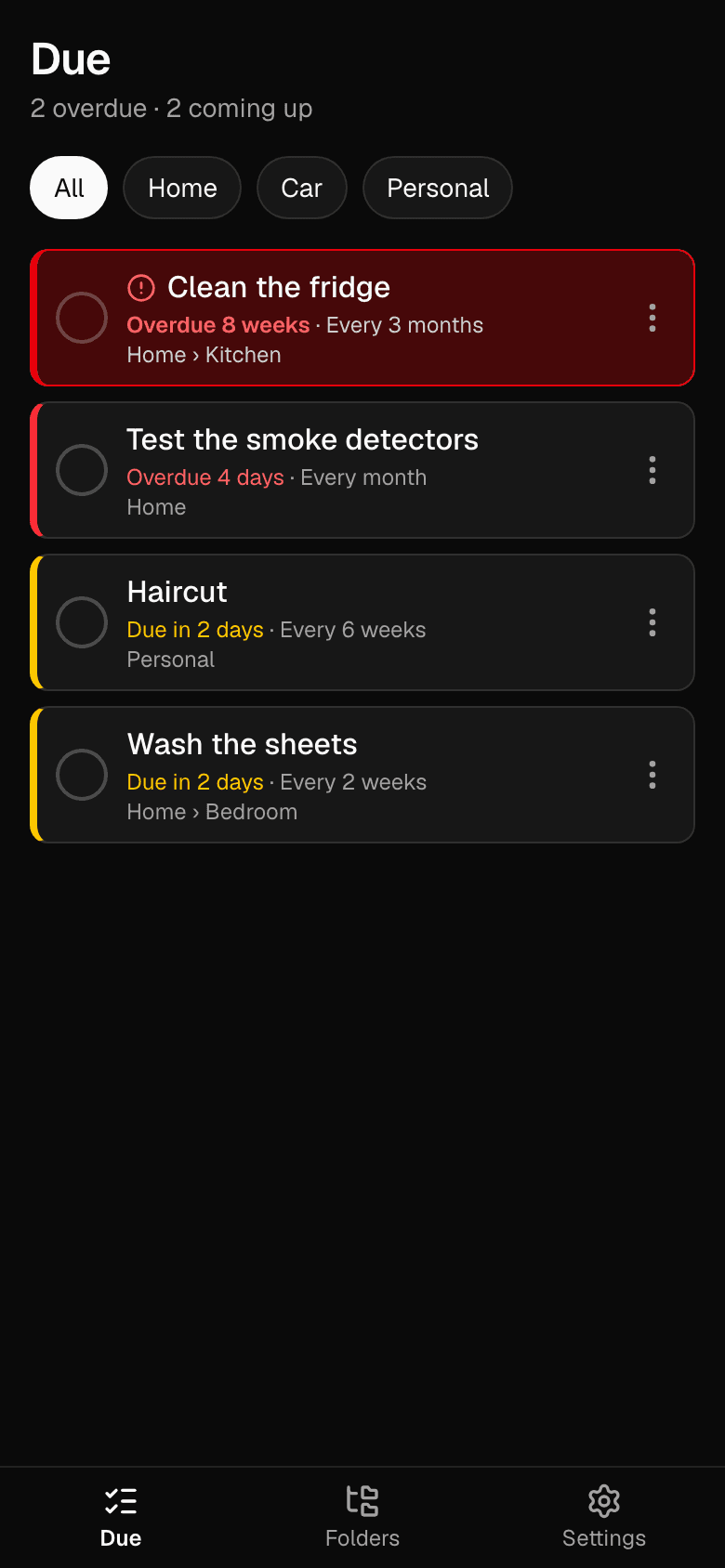
Or just what's due
One list of everything overdue or coming up, from every folder, filtered by place if you like.
Everything it does
Organized like folders
Locations, categories, rooms and sub-tasks, up to five levels deep.
Fair about urgency
Tasks are ranked by how late they are for their own schedule, so a neglected daily job rises above a slightly late yearly one.
Big jobs, small steps
Break “clean the bathroom” into steps. Check them off one by one, or the whole job at once.
Undo a mis-tap
Every check-off can be undone right away.
Works offline
Once opened, it works with no signal: in the garage, the basement or the parking lot.
Private by design
No account, no ads, no tracking. Your tasks are saved on your device, not on a server.
Backups you control
Save a backup file, or text or email it to yourself from the share sheet, and restore it on a new phone.
Dark mode
Light, dark, or match your phone, so it goes dark at night when your phone does.
Larger text
A Large setting makes text, buttons and everything you tap bigger.
Phone first, not phone only
Made for phones, with layouts for tablets, folding phones and computers.
Made for the jobs that come around again
Start with a set of common chores, or build your own from scratch.
Home
Replace the HVAC filter · Test the smoke detectors · Clear the gutters
Cleaning
Clean the fridge · Wash the sheets · Descale the coffee maker
Car
Oil change · Check the tire pressure · Rotate the tires
Garden and plants
Water the ferns · Feed the lawn · Repot the houseplants
Pets
Flea treatment · Wash the dog bed · Vet checkup
Health
Dentist checkup · Replace the toothbrush · Refill prescriptions
Exercise
Long run · Stretching · Replace the running shoes
Work
Back up the laptop · Review subscriptions · Clear the inbox
Your tasks stay yours
Sincewhen has no accounts and no server holding your data. Everything you add is saved on your device, and nothing leaves it unless you save or share a backup file yourself.
- No sign-up, no email address
- No ads, no analytics, no tracking
- Works without an internet connection
No app store needed
Open Sincewhen in your browser, then add it to your home screen. It opens from its own icon, full screen, like any other app.
- iPhone or iPad: in Safari, tap Share (on newer iPhones it is inside the ••• menu), then View More, then “Add to Home Screen”.
- Android: open the browser menu, then “Install app” or “Add to Home screen”.
- Can’t find it? Some browsers, such as Brave on iPhone, don’t offer it. Open this page in Safari (iPhone, iPad) or Chrome (Android) instead.

Questions
Is it really free?
Yes. There is no subscription, no ads and nothing to buy.
Do I need an account?
No. Open it and start adding tasks.
Where is my data stored?
On your device, in the app's own storage. It is never sent to a server. That also means a backup file is your only other copy, so save one now and then from Settings. The app reminds you.
Does it work offline?
Yes. After you have opened it once, it opens and works without an internet connection.
What happens when I get a new phone?
Save a backup file, or share it to yourself, then open it in Sincewhen on the new phone. Your tasks, folders and history come with it.
Can I use it on my phone and my computer?
Yes, but each device keeps its own list: there is no syncing between them yet. A backup file moves everything across.
Does it send reminders?
Not yet. Open it to see what is due, and the colors do the rest. Notifications are on the list for a later version.
Can I share chores with my household?
Not yet. Sharing a home's tasks with a partner or housemates is on the list for a later version.
Which phones does it work on?
iPhone, iPad and Android, in any up-to-date browser, and on computers too. To add it to an iPhone or iPad home screen, use Safari.
Start with a few examples, or your own
The first time you open Sincewhen, it can fill in a set of common chores for you to keep, change or delete.
Open Sincewhen